How to shoot sports silhouettes with Keith Robins Photography.
A white backdrop is good, across the floor by ten feet is even better. A single softbox fires from one side at 45 degrees to the backdrop so the light bounces off harmlessly to the far side and doesn't weaken the blackness. Okay, so this is not exactly even lighting but I'm trying to demonstrate how to do these type of shots simpley, easy, cheaply.
This football shot takes more time than any of the others. Maybe Tann isn't a real sports fan at school - the ball shoots off at so many different angles. Yeah, yeah, I know I could photoshop the ball anywhere I like but that's not the idea here. These are all via Lightroom 3.6 which is old, cheap, simple etc.
Besides, my photoshop is on the blink, I will knuckle down to clearing out my Lightroom files as I'm suspecting the old Lightroom will vanish as soon as I sign up to Adobe CC and I'm not going to even think about what happens then. I never have managed to find where Lightroom saves when it backs up.
Okay, so decorating may not be strictly a sport but DIY is high on the list of popular hobbies along with gardening, fisning and photography, plus I have all the painting kit in my van.
Even the roller and the drill below are often in the van - I'm a builder / repairman.
I reckon a chair adds more impact than a traditional pair of steps, besides I don't have a pair in the van.
I hope you dodn't realize that Tann is adjusting a lighting stand, it should be a pipe, but hey, who's to know?
This climbing image really needs a rockface but my imagination is working overtime on this shoot due to a cappuccino being stronger than my normally drinking just hot water, sometimes with a tiny splash of orange squash.
Just to make thing more challenging I add a second
flash with a grid to narrow the light down to just Tann's face, plus I
shoot in colour as Tann, my model for the morning, wants to create a set of 'normal' photos for her Facebook page.
It was from these that the pure soot and
whitewash silhouettes originate with the help of Lightroom.
Pushing the contrast way up, the brightness right up, blacks far over, plus an adjustment brush with plenty of contrast, etc. Oh, and saturation gets pushed down low as a little purple is creeping in here and there.
Creating these silhouettes has been a rewarding exercise alround and there are so many variants yet to shoot, but using the right lighting in the first place helps a lot in seeing what the camera sees, plus I definitely needed a little help from Lightroom and it's, 'Job done!'
Showing posts with label black and white. Show all posts
Wednesday, 29 October 2014
Wednesday, 16 December 2009
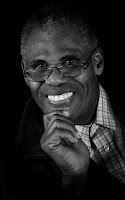
Keith Robins Photography tries sharpening with a big difference! Black and white photos of men can stand a lot of really gritty sharpening. I absolutely love these B andW pictures of Ollie, especially the biting sharpness. Ollie was a former member of Yeovil Camera Club back in the 7o's and willing posed for us.
I tried using unsharp mask but wasn't keen on the resulting halos and colour fringing often associated with normal everyday sharpening.
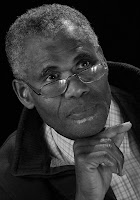
I vaguely remembered reading an article on the web last year suggesting Lab Colour mode as an alternative method of sharpening - so I gave it a go.
First thing is swap to Lab Colour mode, which is found under Image in the top toolbar.
Next, click on Channels in the Layers palette and select the Lightness layer. The other three layers will turn off when you do this. Find the normal everyday Unsharp Mask and whizz it up to 300% - don't worry it'll turn out just fine! (Obviously this 300% is not set in stone so just use that as a starting point, I have used as much as 500% with extremely good results.)
In the Radius box just beneath I went for 0.8 pixels and the bottom box, Threshold, was left at zero - click OK.
Click on the top layer to open up all the other channels again, then go back to Image and swap back into RGB mode. Select Layers as opposed to Channels and you're back in the world of good old layers which we all known and love.
In case you haven't realised I'm a supporter of Jpegs - I have tried RAW but found it decidedly soft and absolutely everything needed working on wityh evry single image - time wasting! I'll continue to let the camera do the donkey work and I'm not tempted to bother trying RAW again, thank you very much. I take around 400 pictures a week, mostly experimenting with lighting and unusual effects and I want to see them right away, full screen.
Besides, I can still use all the Adobe Camera Raw tweaks on my Jpegs prior to opening them in Photoshop. However, if you want to prove me wrong - go on then, I challenge you to make a better picture via Raw in the camera!
After sharpening these photos were changed to black and white using a Black And White adjustment layer in CS3 and moving the red channel slightly to the right and the yellow channel a little bit further. This lightened up the shadow detail in Ollie's features without blowing the brightness of his shirt collar.
I guess one day I'll get used to how Actions operate and that'll speed things up enormously, but for now I enjoy using Photoshop so I'll plod along slowly. Even so, each of these images took less than ten minutes to start looking really good, then I started playing around with oval selections, inverting them, feathering to 130 pixels and finally using another adjustment layer, Levels this time, to introduce a little darkness around the outer edges.
I also use the same 130 pixel feather to make a selection and then press Control + M to bring up the Curves adjustment box and then drag the line down a bit to darken, make another selction and use Curves again to make that selection slightly lighter. This seems to work in a more pleasing manner than using the Dodge tool or the Burn tool.
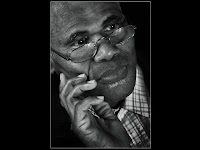
There were two lights used here, one via a shoot-thro brolly and the other bounced into a silver sunshield. Originally designed for a car windscreen on sunny days this £4 makeshift reflector is now supported on a couple lengths of plumbers piping. (See a previous post for info on how to make this easily assembled gadget.)
Ialso used a black blanket background supported on plumbers waste pipe and a short length of plastic guttering fixed atop a single lighting stand. I designed that litle gadget over twenty years ago and still find it extremely quick and simple to erect.
The tip of the brolly was less than eighteen inches from Ollie's nose and to camera left, while the reflector was about two feet away to camera right with the flash only just out of camera view. These lights are ancient and rather warm in tone so I either use a DIY colour balance card, or carry out a custom white balance which is easy on the Canon camera, plus just a little tweak in Adobe Camera Raw before opening up into CS3.
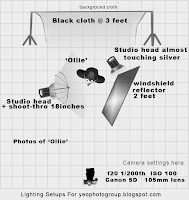
A setup like this uses very little space and most living rooms / lounges / or a large kitchen can be utilised. The studio flashes used here on Ollie are thirty years old and have no power controls, so my alternative set of Elichrom D-Lite 200watt would have been an absolute dream to use.
I ought really to sell those old lights on EBay but hey, old habits die hard. Alternatively, I could have used a couple of old hotshoe flashes with equally good effect. What I'm trying to say is, use whatever lighting you have lying around and instead spend your money on a better lens, or some versatile software such as CS3, or maybe a more patient or attractive model.
Incidentally, I recently spent a couple of hours making up a whole arsenal of tiny diagrams to suit my own lighting needs. These are saved as a huge number of layers and kept as a PSD file, which enables me to move them around, rotate, turn off the ones not needed and flipping over those facing the wrong way. I love Photoshop!!!
I tried using unsharp mask but wasn't keen on the resulting halos and colour fringing often associated with normal everyday sharpening.
I vaguely remembered reading an article on the web last year suggesting Lab Colour mode as an alternative method of sharpening - so I gave it a go.First thing is swap to Lab Colour mode, which is found under Image in the top toolbar.
Next, click on Channels in the Layers palette and select the Lightness layer. The other three layers will turn off when you do this. Find the normal everyday Unsharp Mask and whizz it up to 300% - don't worry it'll turn out just fine! (Obviously this 300% is not set in stone so just use that as a starting point, I have used as much as 500% with extremely good results.)
In the Radius box just beneath I went for 0.8 pixels and the bottom box, Threshold, was left at zero - click OK.
Click on the top layer to open up all the other channels again, then go back to Image and swap back into RGB mode. Select Layers as opposed to Channels and you're back in the world of good old layers which we all known and love.
In case you haven't realised I'm a supporter of Jpegs - I have tried RAW but found it decidedly soft and absolutely everything needed working on wityh evry single image - time wasting! I'll continue to let the camera do the donkey work and I'm not tempted to bother trying RAW again, thank you very much. I take around 400 pictures a week, mostly experimenting with lighting and unusual effects and I want to see them right away, full screen.Besides, I can still use all the Adobe Camera Raw tweaks on my Jpegs prior to opening them in Photoshop. However, if you want to prove me wrong - go on then, I challenge you to make a better picture via Raw in the camera!
After sharpening these photos were changed to black and white using a Black And White adjustment layer in CS3 and moving the red channel slightly to the right and the yellow channel a little bit further. This lightened up the shadow detail in Ollie's features without blowing the brightness of his shirt collar.
I guess one day I'll get used to how Actions operate and that'll speed things up enormously, but for now I enjoy using Photoshop so I'll plod along slowly. Even so, each of these images took less than ten minutes to start looking really good, then I started playing around with oval selections, inverting them, feathering to 130 pixels and finally using another adjustment layer, Levels this time, to introduce a little darkness around the outer edges.
I also use the same 130 pixel feather to make a selection and then press Control + M to bring up the Curves adjustment box and then drag the line down a bit to darken, make another selction and use Curves again to make that selection slightly lighter. This seems to work in a more pleasing manner than using the Dodge tool or the Burn tool.
There were two lights used here, one via a shoot-thro brolly and the other bounced into a silver sunshield. Originally designed for a car windscreen on sunny days this £4 makeshift reflector is now supported on a couple lengths of plumbers piping. (See a previous post for info on how to make this easily assembled gadget.)Ialso used a black blanket background supported on plumbers waste pipe and a short length of plastic guttering fixed atop a single lighting stand. I designed that litle gadget over twenty years ago and still find it extremely quick and simple to erect.
The tip of the brolly was less than eighteen inches from Ollie's nose and to camera left, while the reflector was about two feet away to camera right with the flash only just out of camera view. These lights are ancient and rather warm in tone so I either use a DIY colour balance card, or carry out a custom white balance which is easy on the Canon camera, plus just a little tweak in Adobe Camera Raw before opening up into CS3.
A setup like this uses very little space and most living rooms / lounges / or a large kitchen can be utilised. The studio flashes used here on Ollie are thirty years old and have no power controls, so my alternative set of Elichrom D-Lite 200watt would have been an absolute dream to use.I ought really to sell those old lights on EBay but hey, old habits die hard. Alternatively, I could have used a couple of old hotshoe flashes with equally good effect. What I'm trying to say is, use whatever lighting you have lying around and instead spend your money on a better lens, or some versatile software such as CS3, or maybe a more patient or attractive model.
Incidentally, I recently spent a couple of hours making up a whole arsenal of tiny diagrams to suit my own lighting needs. These are saved as a huge number of layers and kept as a PSD file, which enables me to move them around, rotate, turn off the ones not needed and flipping over those facing the wrong way. I love Photoshop!!!
Thursday, 6 August 2009
Nicola is an Olympic triathlon hopeful for 2012. On Sunday the 2nd August she won a bronze medal in the London Junior Elite Triathlon - Wednesday evening I spot her picture in the Western Gazette sports pages and intend asking her ref photos. An hour later and she is in our studio ready for a few portraits. Are we fast movers or what!!!This is my favourite image from about forty studio flash shots taken last night. Okay so it's not in colour - you should know by now that black and white and I go back a long, long way.
It's now five-thirty Thursday morning and I can't sleep, so I fire up the computer, make a drink and open Photoshop.
I produced this black and white soft focus image of young Nicola via the amazing Black And White filter in Photoshop CS3 by lightening the Red and the Yellow channels. Two stages of softening were added along with a couple of masks and finally, drag in our YPG copyright slogan. I'm sorry we have to do this but there are people out there who think our work is so good that they'd rather pinch than take their own photos for their websites. Bit of a compliment in a way I suppose, although I'd prefer they accredited the images to YeoPhotoGroup, in which case I'd probably give it to them for free.
Levels and curves produced an improvement in the overall lighting, which was a little below our normal high standard due to there being six people in our cramped little studio.
We also tried some daylight shots, (left), plus the shadows are filled using a silver surfaced sun visor for a car windscreen costing just £2-99 at Aldi supermarket - it's held rigid by a large 'H' shape of 15mm copper tubing (what else?).The gorgeous catch-light in the lower half of Nicki's eyes is a reflection of this 2 foot by 4 foot reflector which I held horizontal just above waist level while Kelv took this image. Kelv definitely knows his Nikon camera and his grasp of lighting is growing week by week.
We're both impressed at how incredibly successful this reflector is in producing soft fill-in lighting and I shall certainly be using this gadget during all my outdoor portrait sessions. Will post up the details of how to build my 'Super Silver Bouncer' as soon as.
Meanwhile, Nicki wants some sponsorship photos of herself in action which is going to produce its own set of challenges as far as lighting is concerned. Flash and daylight balanced, the shutter speed right down around 1/10th of a second for blur and my Vivitar 285HV on full power for main lighting at a three o'clock position. A Starblitz at seven o'clock position for fill lighting - Nicki would be running left to right in this particular setup.
I want to go for late evening, brow of a hill, running and cycling past at various speeds, use second curtain flash to capture a sharp shape with a faint blur trailing behind Nicki due to the slow shutter speed. I want sharp detail on tracksuit, logos, and Nicola's lovely features.
Must also leave enough room around Nicola so that the background, lit by really weak daylight, is attractively blurred but not over-lit. Over this blurring will appear the sponsors logos etc.
This is going to be some shoot! Anyone willing to help carry the kit and hold up the lights and reflectors on this shoot? You'll certainly learn a lot about lighting on the hoof!
I might even try my Elinchrome D-Lite 200's outdoors by running them on a borrowed 2.3Kw generator.
Once I know the generator is capable of handling the power requirements then I might get around to making up a lighter, more portable 12 volt power inverter. I mean, how difficult can it be to knock one of those up in the shed!!? Now come on, don't jest, I'm serious! Watch this space.
Labels:
black and white,
Olympic hopeful,
portrait,
soft focus,
studio lighting,
Triathlon
Monday, 6 July 2009
Newcomer Liz learnt how to use a single studio flash really fast. Okay, so in this first relaxed picture of Jane, one of Yeovil Camera Club's prettier members, there is a small hair light at two o'clock high but then we dispensed with that and tried to be as creative as possible with just the one light.Positioned less than arm's length to camera left and using a shoot-through brolly this light has certainly seen some faces in the last 30 years, but it's still capable of producing the goods.
Yes, I do own a set of Elinchome D-Lite 200's with soft boxes but I rarely use them for any of these YeophotoGroup posts as the idea is to press home the point that you do not need to spend lots of money to have fun with your photography.
For this second shot of Jane I think we should have moved the light a little nearer the camera, although the brolly edge might then have intruded into the specs as an unwelcome reflection.Note how Liz has just managed to keep the whole of Jane's eyes visible behind the rims of her specs. Always try to get the whole eye / eyes as these are the make or breakpoints of beautiful portrait work.
The latest addition of a Black and White filter in Adobe CS3 is fantastic, all it needs is a slight lift in the red and yellow channels followed by a faint touch of black paint in the white mask box to bring just a hint of colour into Jane's lips, eyes and hair. For a first timer regarding portrait work Liz did exceptionally well with these three shots.
When it came to lighting a couple we decided to add a reflector.A white shower curtain from Aldi supermarket cost me £7, add on 12 feet of 15mm copper pipe and a couple of joints and I have a six feet by three feet shiny white reflector for a total sum of under £17 - a post on how to make this will be coming up soon.
About ten shots into the couple sequence Liz caught this lovely pose of Jane and the YCC chairman Sandy perfectly. Some might say those fingers on the right are intrusive but with a simple soft edged vignette I think Liz has a competition winner here.
Well done Liz, hope to see you here again at the YeoPhotoGroup studio
Keith (strobist) Robins.
Sunday, 7 June 2009
Adding a "Copyright" logo to an image is pretty straight forward. Here's how it's done.With your image open in Photoshop click on the Text tool and a new text layer opens above the original image. Hold down Alt and type on the numerical pad at the righthand end of your keyboard the numbers 0169 which brings up the copyright symbol ©.
Now type part of your name or logo in front and the rest after, click on the Tick in the top toolbar to accept your text and you have the basics of an original copyright logo.
Click on the FX symbol in your layers palette and choose Drop Shadow, push the top and bottom slider across to the right just a little, then tick the Bevel box.
By taking the Fill of this text layer down to zero and the Opacity down to 40 - 60% you will only see the drop shadow and a very slight distortion of the image below due to the Bevel effect. To resize, move, or rotate your new logo, hold down Control and press T to bring up the Transform box around the text. Now you can stretch the logo and distort it in all sorts of ways, plus lower or raise the Opacity to suit each image before clicking Save As and save it as a PSD.
To use this same logo on another image open both images and with the logo image highlighted click on the text layer with the Move tool and drag it over to the new image and only that layer will transfer to a new layer with your new picture. Move this new layer to the top of the layer stack, if it's not there already, and alter the size, opacity etc to suit. Again, the Transform tool can rotate, resize and reposition, plus the Opacity control is right there in the Layers palette.
Did you know that when saving as a Jpeg there is no need to flatten the image first? All the layers automatically merge into one. you complete your Save As and save it as a Jpeg. Then, once it's saved, all the layers seperate again so you can do more work on the image before saving it as another Jpeg. Very useful for building AV's where an image needs to progressively change. There's an example of this type of AV here. This AV is zipped so it won't be carrying any viruses. You'll have to download and Save As, then it can be scanned with antivirus software before unzipping it. Okay, so it takes a minute or so but the biggest benefit is that these AV's can be viewed full screen, full res, unlike its YouTube competitor. If you want a bit of fun there's another AV here.
This portrait of me was taken by my good friend Trevor Kirk. I'm holding a Vivitar 285HV at arm's length in my left hand and a 24" inch Lastolite white reflector in my right-hand about 12 inches away. The background was bright sunlight but reduced by taking the shutter speed up to 1/250th of a second- the aperture was f8 and the flash on 1/16th power - ISO 100.
Subscribe to:
Posts (Atom)